AI Agent Configuration · New feature
Custom email greeting and finalising sentence: you decide how emails open and close
November 16, 2026
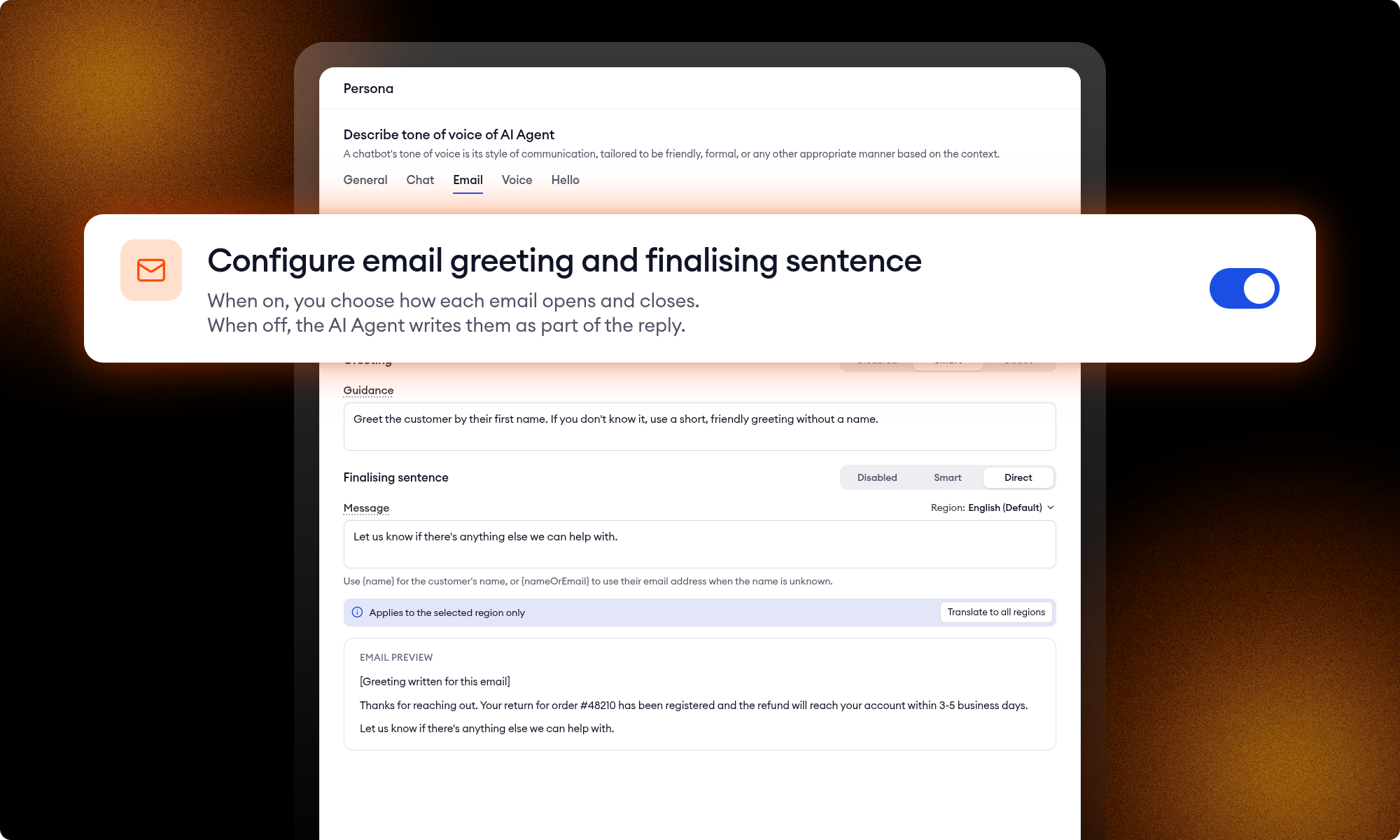
Until now, the AI Agent decided how an email opened and closed. It always started with a personal greeting, sometimes addressing the customer by their email address, and it didn't add a closing sentence on its own. A closing sentence put in the mailbox signature wasn't translated, and one put in the tone of voice showed up only some of the time.
Custom email greeting and finalising sentence changes that. Turn it on, and the AI Agent writes only the body of the email. The greeting and the finalising sentence come from your settings, and you choose how each is written. Nothing changes until you turn it on and publish. Available for AI Agents migrated to the optimised Zowie architecture.
How it works
Greeting and Finalising sentence each have three options:
- Disabled: the email goes out without that line.
- Smart: you write Guidance, and the AI Agent writes the line for each email, in the customer's language.
- Direct: the AI Agent adds the exact text you write. If your AI Agent has more than one region, write the line for each region or use Translate to all regions.
In a Direct line, use {name} or {nameOrEmail} to insert the customer's name, taken from the sender name on their email. When the name isn't known, {name} is left out ("Hi {name}," becomes "Hi,"), and {nameOrEmail} uses their email address instead.
The lines go around every email the AI Agent sends, including messages from your Flows. The Email preview shows how they sit around the body.
How to turn it on
- Open Personality and select the Email tab under the tone of voice.
- Turn on Custom email greeting and finalising sentence.
- Set Greeting and Finalising sentence to Smart, Direct or Disabled.
- Save and test on Staging, then publish.
With the setting off, the AI Agent keeps writing its own greeting, as before.
Good to know
- Your mailbox signature is still added below the email. Keep the logo, address and legal text there, and move a closing sentence like "Feel free to reach out if you have any questions" into the Finalising sentence, so it matches the customer's language.
- If your helpdesk adds its own greeting or signature, set the lines you don't need to Disabled. With both disabled, the email holds only the answer.
- In newly created environments, this setting is always on and comes with a Smart greeting and finalising sentence. You can change both lines or set them to Disabled.
Limitations
- If a Smart line can't be written in time, the email goes out without it.
- If your Zowie team set up custom email instructions for your AI Agent, talk to your Technical Account Manager before you turn this on, so emails don't get a second greeting.
Stop leaving your processes to probability
See how Flows and Decision Engine guarantee that every step of your process runs exactly as designed.