Decision Engine · AI Agent Configuration · New feature
Working hours and Out of office schedules now live in your Flows
November 2, 2026
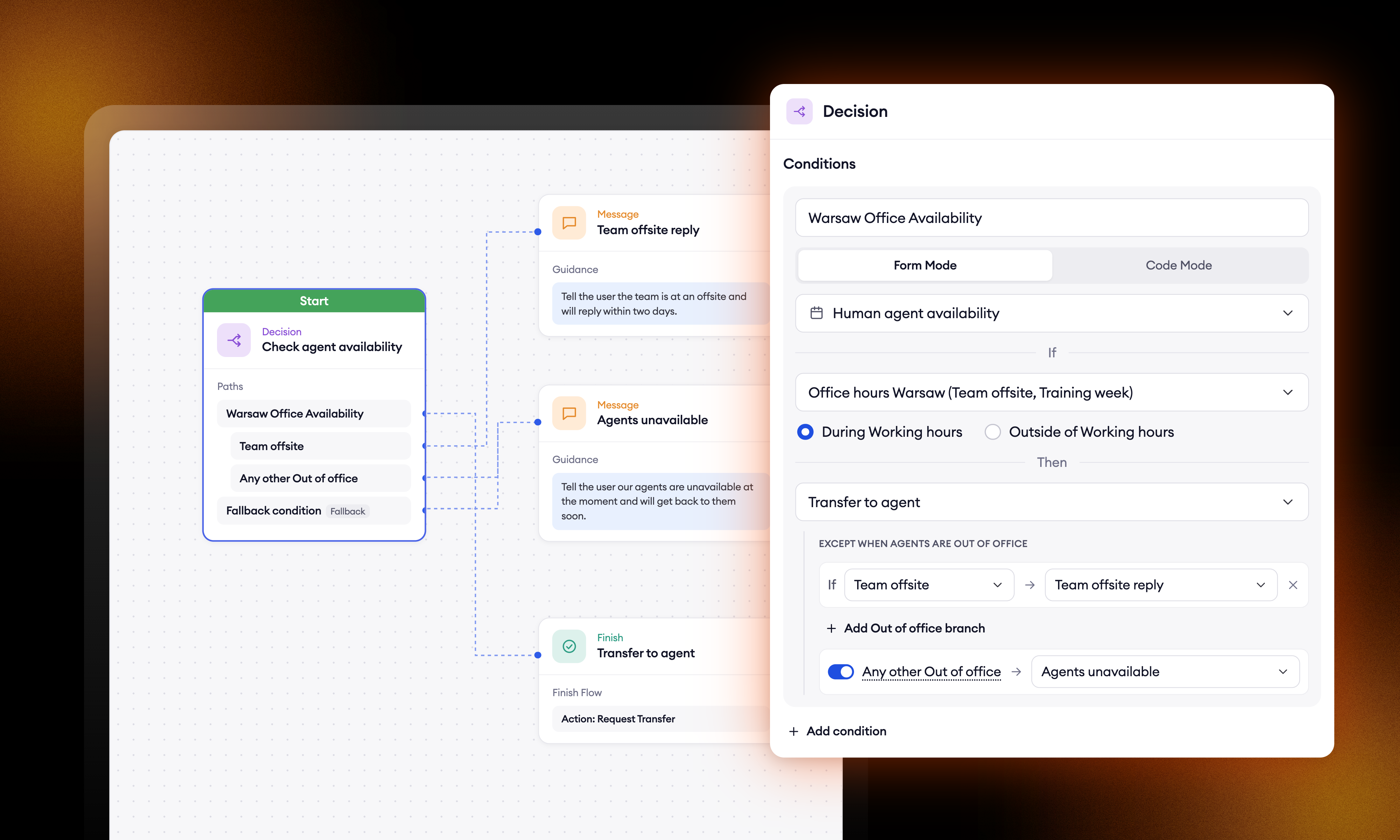
You can now add special Out of office schedules on top of your regular Working hours, giving you the flexibility to account for holidays like Christmas or Thanksgiving when your agents are away.
A customer asks for a person at 9 pm and gets "Our agents aren't available at the moment." But where did that message come from? Until now, the Flow only showed the decision to transfer, while the handover configuration, its Working hours and any attached Out of office schedules determined what happened next and what the customer heard.
That changes today. Working hours and Out of office schedules now live directly in your Flows, bringing the entire transfer setup into one place where you can see and manage it.
What's new
- A handover is only a destination. It says where the conversation goes: Zowie Inbox, your help desk, a queue. On AI Agents that use the Zowie optimised architecture, new handovers default to Routing only.
- Out of office schedule is linked to Working hours. An Out of office now has a Working hours tab. While it's active, the linked Working hours count as closed.
- The Decision block checks human agent availability. The Human agent availability condition checks Working hours, and each linked Out of office can get its own branch. Add Out of office branch to say something different during an offsite than on a public holiday.
One Flow can now handle every case before a transfer:
- Email → transfer right away
- Team offsite → "We're away at an offsite, we'll get back to you soon." → end
- Inside working hours → "Connecting you to an agent." → transfer
- Outside working hours → "Our agents aren't available at the moment." → end
How to set up an Out of office
- Go to Workspace → Availability → Out of offices and select Create new.
- Under Time frames, set the time zone and the dates when your agents will be away.
- Under Working hours, select the working hours that this Out of office schedule should override.
- In your Flow, open the Decision block and select Human agent availability. Choose the same Working hours, then select Add Out of office branch and pick the Out of office schedule you created.
- Connect the branch to the message you want customers to hear during that Out of office period.
Note: If you're using a Routing only handover, you can leave Chatbot replies empty. For AI Agents, customers will hear the messages configured in your Flow instead.
Your existing handovers
Handovers that already have working hours, replies or an out of office keep working as they do today.
Stop leaving your processes to probability
See how Flows and Decision Engine guarantee that every step of your process runs exactly as designed.